Choose a grid
Start with a 1×2, 2×2, 3×3 or social-media preset. You can also set any custom combination from 1 to 5 rows and columns.
Add, paste, or drop several photos for an instant grid. Click any panel to replace it, drag to crop, then download.
Mixed portrait and landscape photos are welcome.
Photos stay on this device.
Start with 25–100 JPG, PNG or WebP photos.
No upload, account or watermark.
Upload two photos, align the subject, edit labels and download a dedicated before-after comparison.
3 Photo GridPlace three photos in a single row, then change the canvas ratio and crop position for your story.
4 Photo GridCreate a balanced four-photo grid without dragging guides around in Photoshop.
InstagramStart from square and portrait-friendly presets for social posts.
Photo SplitterTurn one large image into 3, 6, 9 or custom Instagram profile posts in the correct order.
Image CombinerPaste or upload photos and merge them vertically, side by side, or in a grid.
Screenshot StitcherJoin scrolling captures and automatically remove duplicated overlap between consecutive screenshots.
Photo StripArrange 3–6 photos into a 2×6 strip, a two-copy 4×6 print sheet, or a vertical social keepsake.
Before & AfterAlign two photos, add custom labels and export a side-by-side, stacked or split result.
Paint by Number GeneratorConvert a photo into numbered regions with a matching color key.
Line ArtTurn a photo into adjustable black-and-white line art for tracing, printing or a transparent PNG.
How it works
Start with a 1×2, 2×2, 3×3 or social-media preset. You can also set any custom combination from 1 to 5 rows and columns.
Add several images at once or click an individual panel. Drag a photo inside its panel to choose which part stays visible.
Adjust spacing, corners, background, borders and frames, then export the finished grid as a high-resolution PNG or JPG.
Choose the right output
Stay here when you need a quick square, portrait or wide photo grid with crop, spacing, borders and PNG/JPG download.
Open Before and After Photo Maker when two images need matched framing, labels and a side-by-side or split comparison.
Open Large Photo Collage Maker when the job is 25, 50 or 100 photos, no-crop smart rows and print-size output.
Open Contact Sheet Maker when filenames, sequence numbers, full-photo thumbnails and Print / Save PDF matter more than decoration.
Choose the right layout
A grid such as 2×2 describes the number of photo panels. The canvas ratio describes the shape of the complete downloaded image. Keeping these choices separate means you can create a square 2×2 collage, a vertical 2×2 story image or a landscape 2×2 post without rebuilding the grid.
For the broad grid maker or photo grid online task, start with the quick editor when you need a 2×2, 3×3 or custom grid with spacing, borders and labels. This is the online photo grid path for quick social posts, comparison boards and small sets where you want a clean download without opening desktop editing software. Switch to Large Collage Maker only when the job has 25 to 100 photos, or to Contact Sheet Maker when filenames and PDF proofing matter more than styling.
If you want to turn one photo into a grid with guide lines over the image, use Add Grid to Photo instead. It is the dedicated tool for drawing overlays, printable reference grids and creating a grid on an image.
Use 1×2 or 2×1 for comparisons, 2×2 for four equally weighted photos, and 3×3 for a nine-photo collection. Auto-fit is useful when you want the tool to select a compact layout from the number of uploaded images.
Social-ready formats
The quick-format buttons combine a practical grid with a platform-friendly canvas. Instagram presets cover square and portrait compositions, TikTok uses a vertical 9:16 canvas, and Facebook and LinkedIn start with a wide 16:9 layout.
These are convenient starting points rather than locked templates. Change the rows, columns or ratio after choosing a platform, and the preview and downloaded file stay synchronized.
Private by design
The editor uses HTML Canvas to arrange and export your images on your device. Photos are not uploaded to our server for grid processing, and no account is required. JPG, PNG and WebP source images are supported; finished layouts can be downloaded as PNG for crisp graphics or JPG for a smaller shareable file.
Because the preview uses the same rendering path as the export, spacing, backgrounds, borders, rounded corners and frames are designed to appear consistently in the downloaded image.
For 25–100 photos
Large collage is built for anniversary posters, travel timelines, graduation memories and family photo walls. Add mixed portrait and landscape images, keep their selection or date order, and let smart rows balance the poster while showing each complete photo.
Before downloading, open the photo-order review to move or replace individual files. The print sizes use a higher-resolution export than the live preview, while decoding source photos one at a time to reduce peak browser memory.
Open the Large Photo Collage Maker for 25–100 photos. To print a finished collage across A4 or Letter sheets, use Split Image for Printing.
Before and after
See how four separate photos become one balanced 2×2 grid. The same workflow works for Facebook posts, TikTok photo layouts, Instagram feeds, and everyday collages.
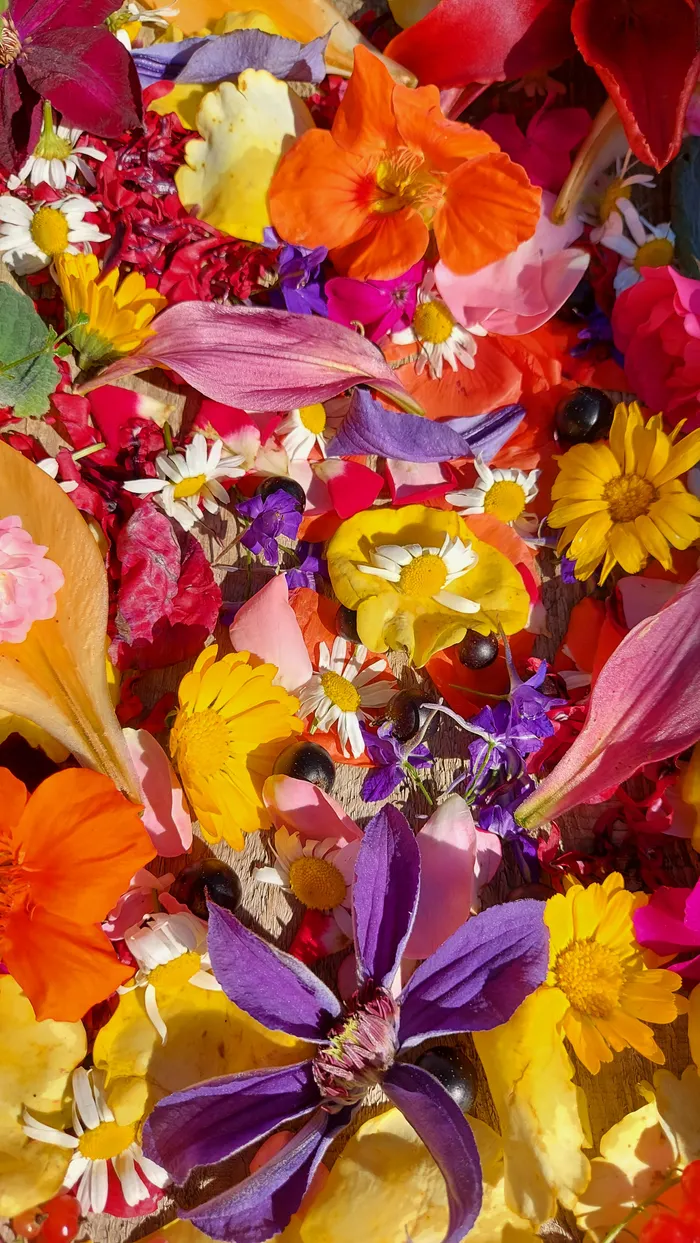
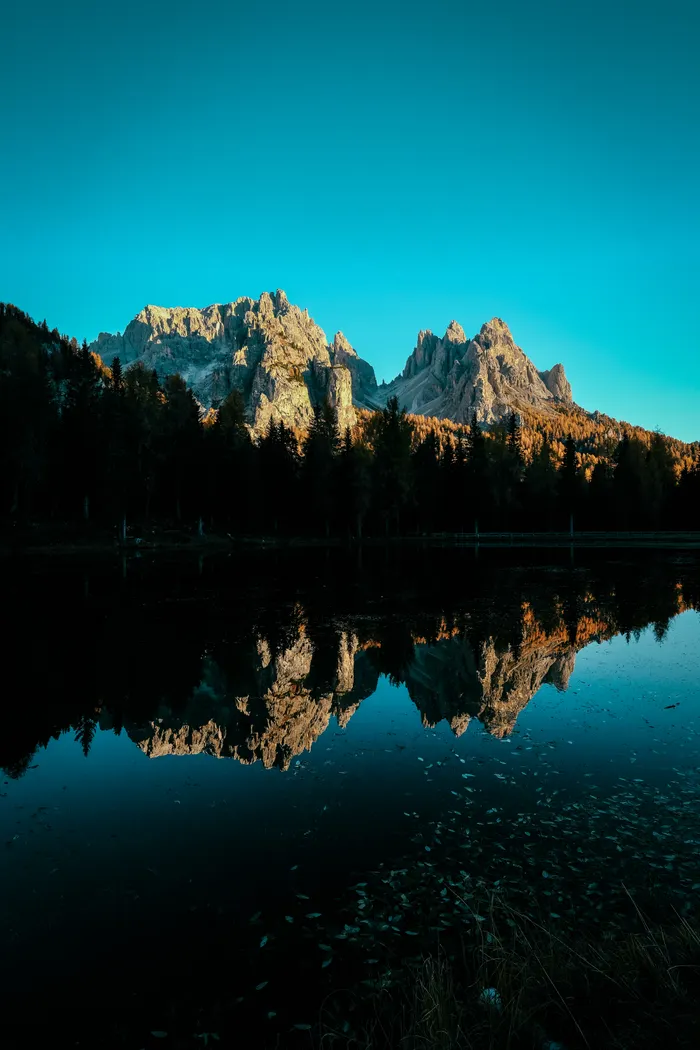
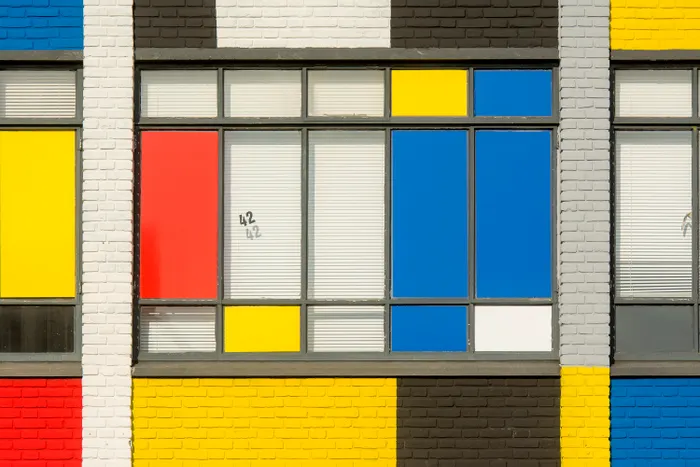
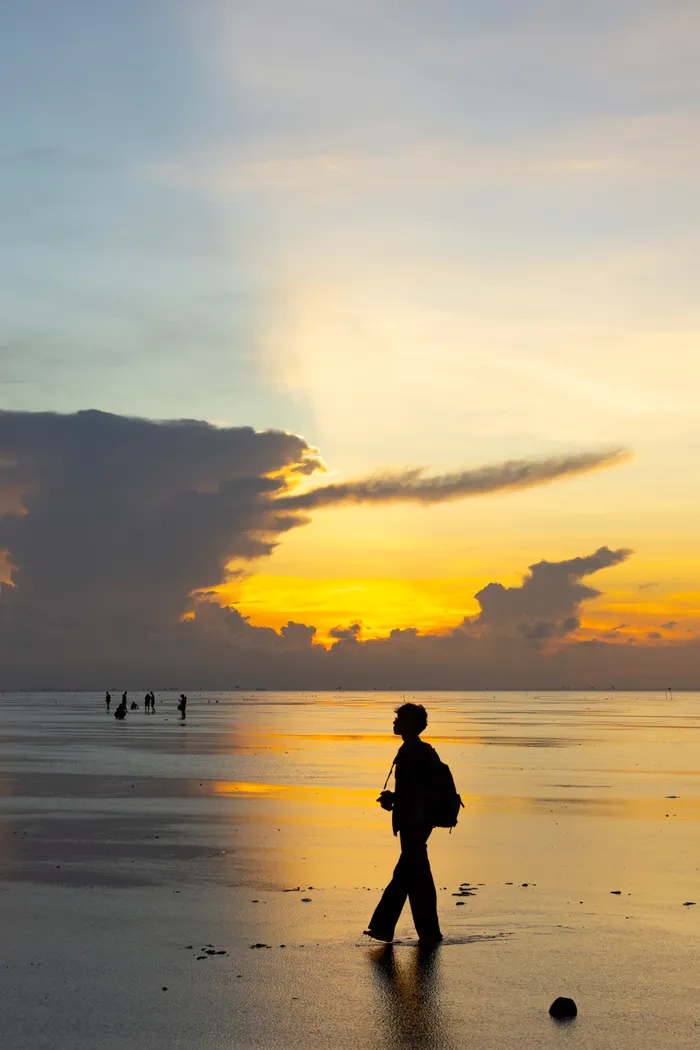
Demo photos: Nadia Spak, Francesco Ungaro, Jan van der Wolf, and HONG SON on Pexels.
FAQ
Yes. Photo Grid Maker is free to use, with no signup and no watermark.
No. The grid editor processes your photos locally in your browser and does not upload them to our server for editing.
Yes. Choose any preset from 1×2 through 3×3, or use the sliders to create a custom grid with up to 5 rows and 5 columns.
Yes. Keep auto-fit enabled and the editor chooses a compact grid when you add multiple photos.
Yes. Quick formats set useful grid and canvas combinations for Instagram, TikTok, Facebook and LinkedIn, and every setting can still be adjusted.
Yes. Choose Try sample to load four credited demo photos into a 2×2 grid. Change the layout, ratio and finish, then click any panel to replace a sample with your own photo.
Use Try sample or add several photos, keep Auto-fit on, choose a square, portrait or wide canvas, then download PNG or JPG. For a two-photo before/after picture use Before & After; for a one-photo drawing overlay use Add Grid to Photo; for 25 or more photos use Large Collage.
Use Quick grid for 2–25 styled photos, Before & After for two aligned transformation pictures, Large Collage for 25–100 photos in one poster, Contact Sheet for filename proof sheets, and Paint by Numbers when one photo needs numbered printable regions and a color key.
Yes for straightforward multi-photo layouts. The browser editor handles grid setup, cropping, spacing, backgrounds, frames and export without Photoshop.
Yes. Switch to Large collage to arrange up to 100 mixed portrait and landscape photos as a print-ready poster. Smart rows keep complete photos visible by default, and you can review the exact order before downloading.